How quality checks work in TaTasque
A step-by-step look at the quality side: how a type of check and its criteria are set up, how a task gets its checks, what the person on site fills in and signs, and where you review the results. Every picture is a real screen from a demo job. Button and field names are shown in bold, exactly as the screen shows them.
0Before you start
- Quality is a company feature, under Company → Quality.
- The account Owner and Admins set up the types of check and their criteria. Anyone who can edit a task fills in its checks. Anyone who can see the task can read its finished records.
- On screen, a type of check is called a Survey type. The rest of this page says “type of check”.
- Types of check live inside a standard: one whole, such as a published standard (for example MRTS56) or your company’s own.
1Set up your methods once
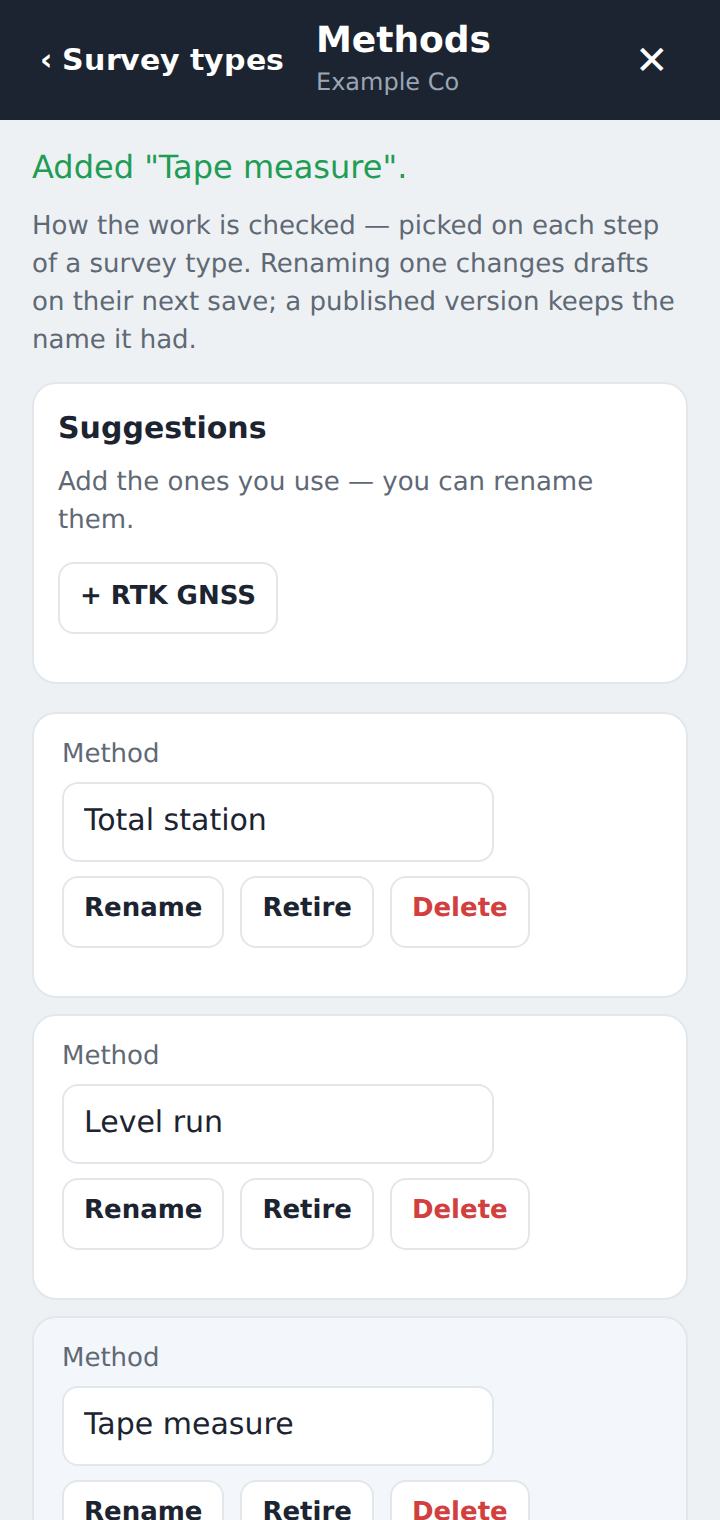
Methods are how the work is checked. You set the list up once under Company → Quality → Methods, and each criterion then picks one.
Some common ones are offered to add in one tap; you can add your own, rename them, or retire one you no longer use.
2Make a standard, then its types of check
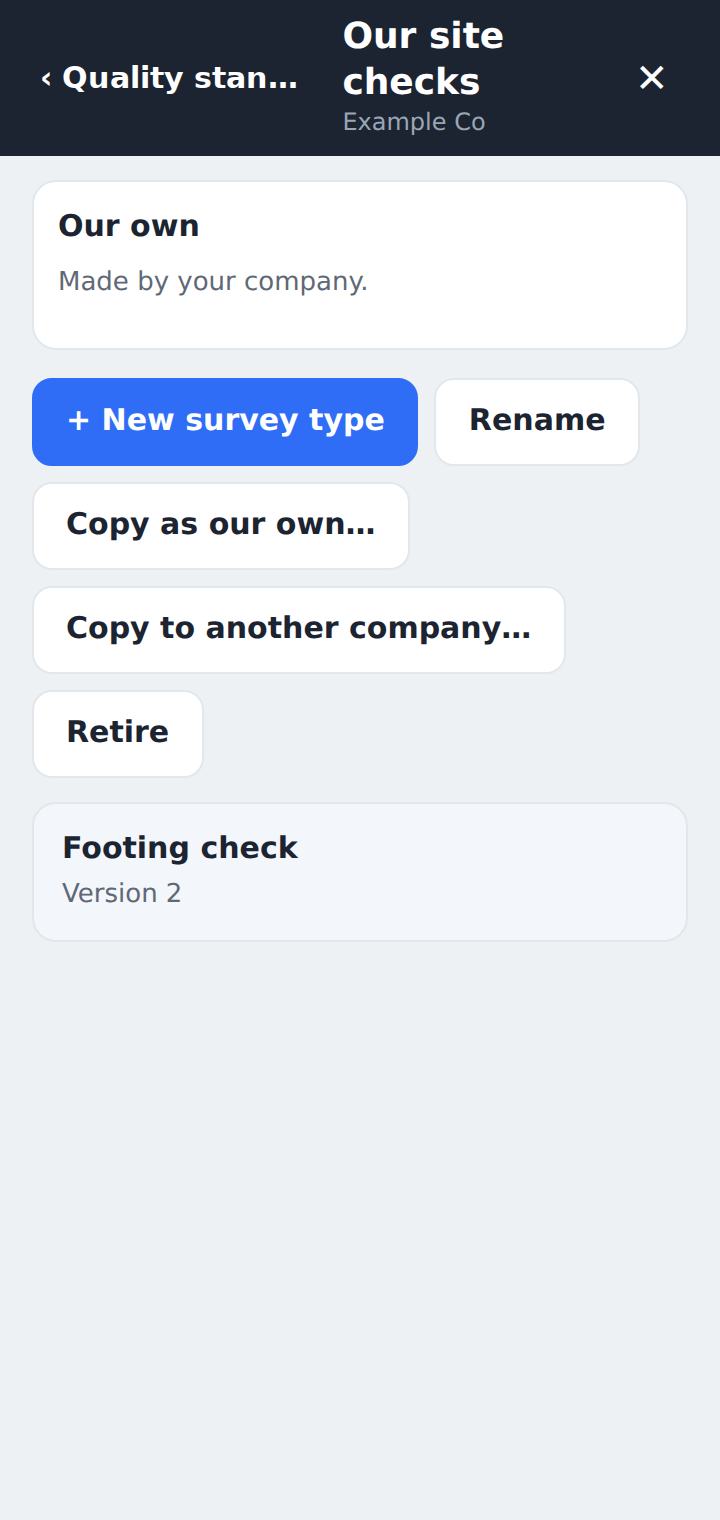
Under Company → Quality you see your Quality standards. + New standard makes one of your own; open it and use + New survey type for each type of check inside it.
A standard taken in exactly as it was published is Adopted — fixed: nothing in it can be changed. To change one, open it and use Copy as our own…. You give the copy a new name, it becomes yours, and it always says where it came from. Copy to another company… does the same for another company you manage.
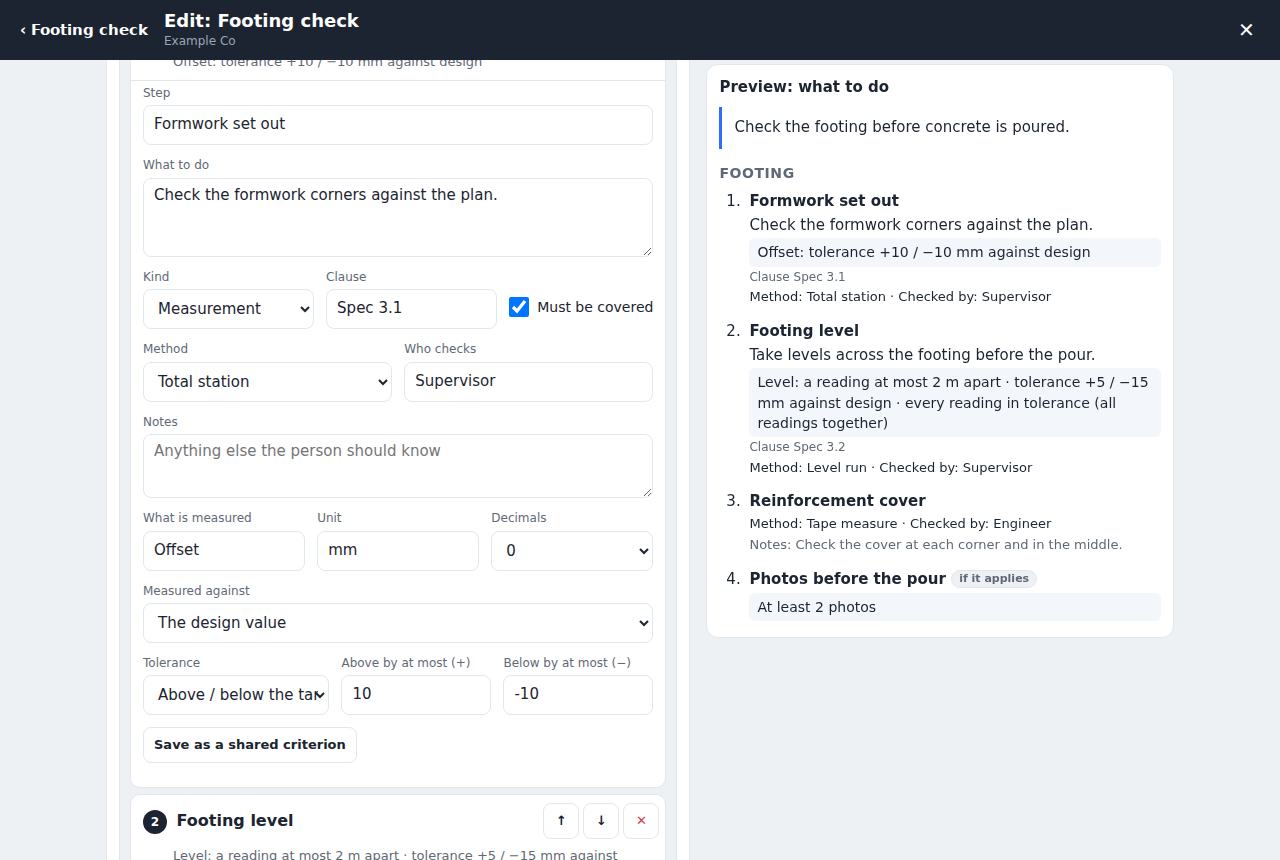
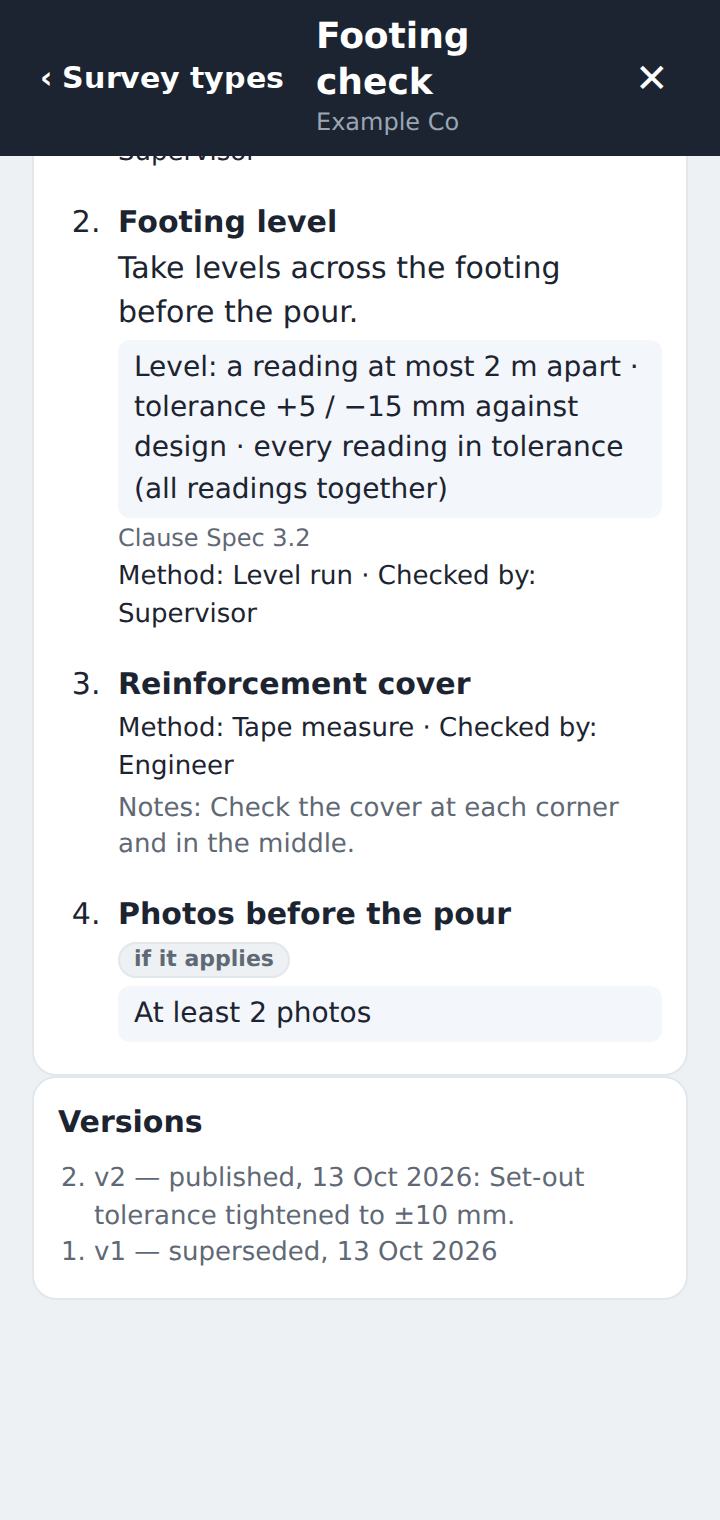
For each type of check, build each criterion by hand: what is measured and its unit, the tolerance (it can be one-sided), how often a reading is taken (for example every 2 m, or per lot), how it is accepted, the clause it comes from, the Method, Who checks and any Notes.
The preview on the right shows exactly what the person on site will read. Save draft keeps your work; Publish makes it available to tasks.
3Changing criteria makes a new version
Every published change is a new version, with a note of what changed. Nothing already done changes with it.
A task working to the older version shows that a newer one is available, and someone moves it across with Use vN. A record that has been signed always keeps the version it was checked against.
4Add a Quality field, then give each task its type of check
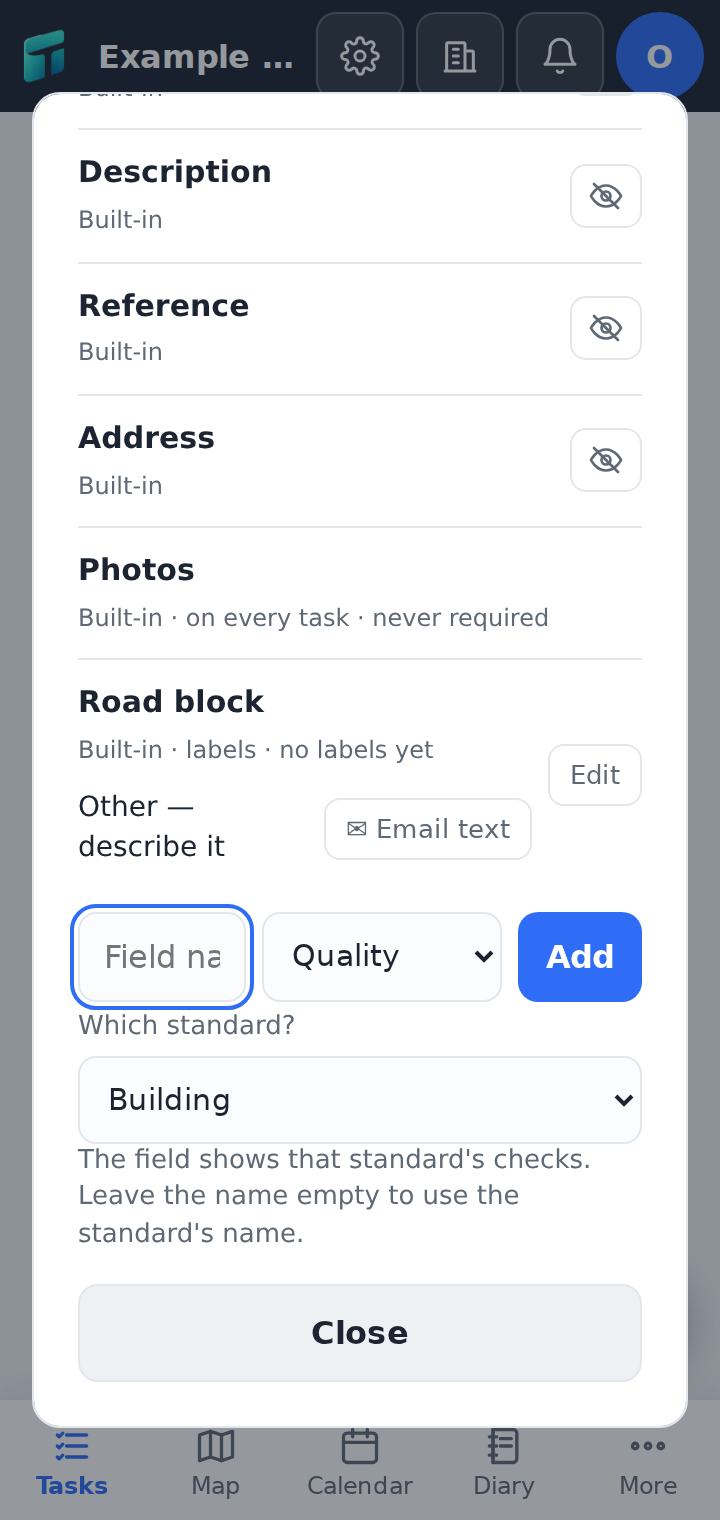
Once per project: the Project cog → Workflows & fields, choose the type Quality, pick which standard it uses, then Add. The field is named after the standard (you can rename it). Put it in the workflows that need it; a workflow can hold several Quality fields, one per standard.
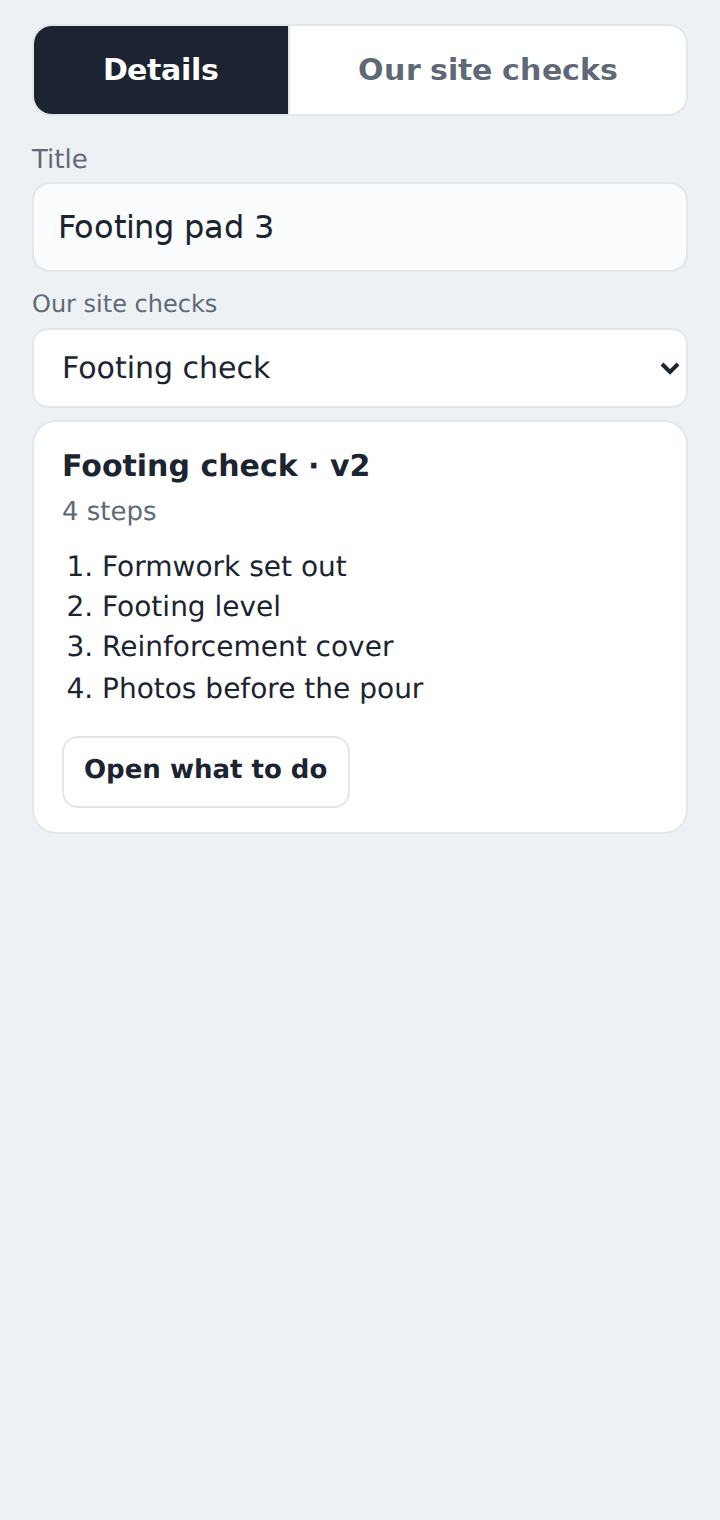
Then, on each task, someone picks its type of check from that standard. It saves at once. The card underneath shows the version and the first few criteria, and the task gets a tab with the field’s name.
5What the person on site sees
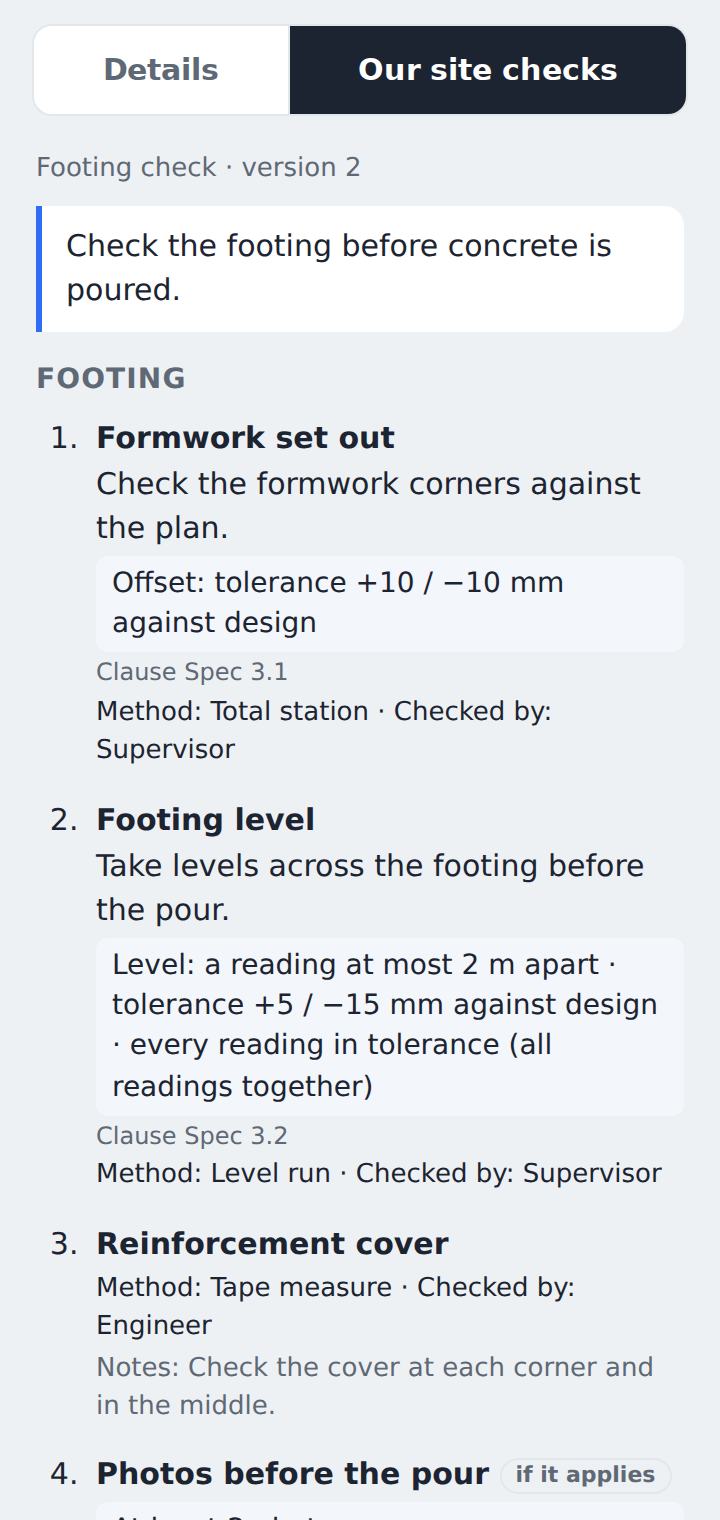
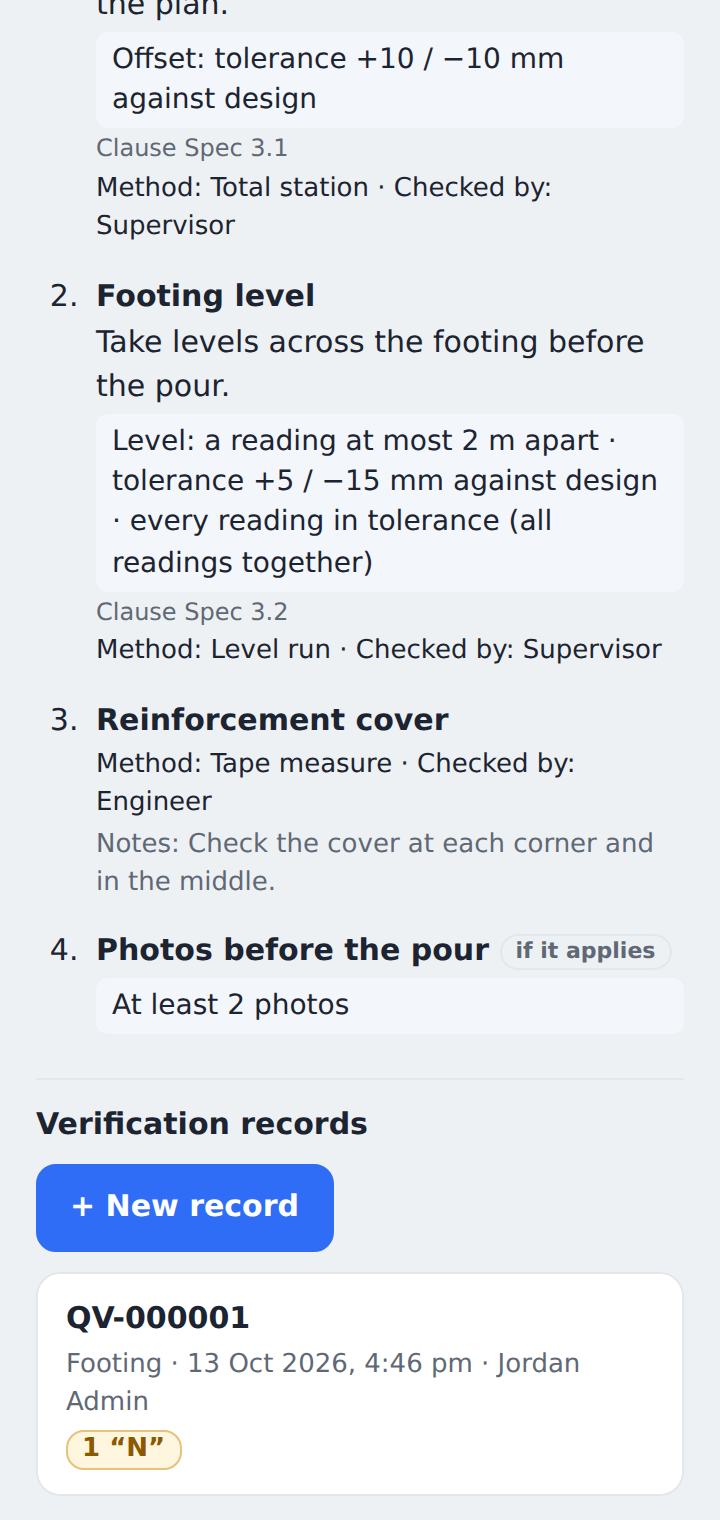
The field’s tab (here Our site checks, opened with Open what to do) lists each criterion in plain words: what to do, the tolerance and how often, the clause, the method, who checks it and any notes.
6Filling in the record
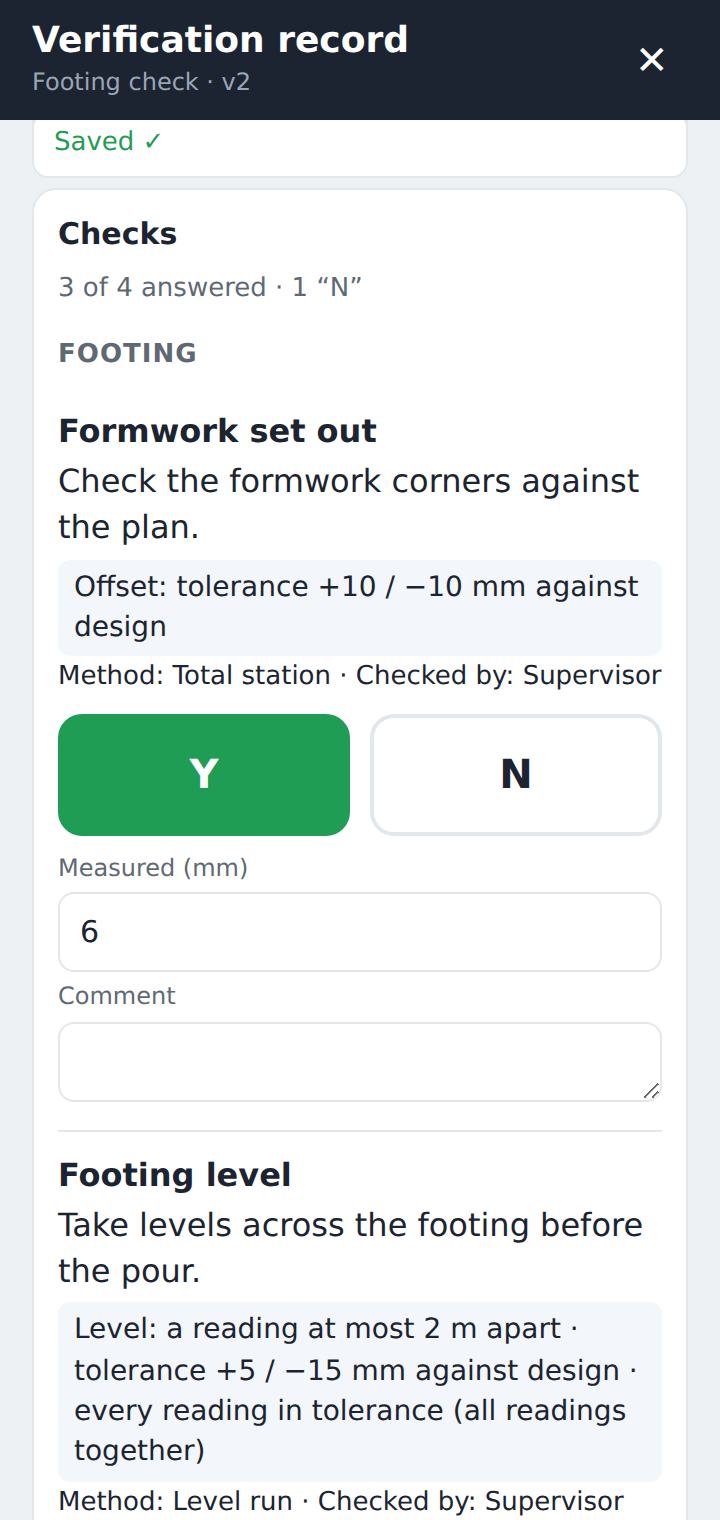
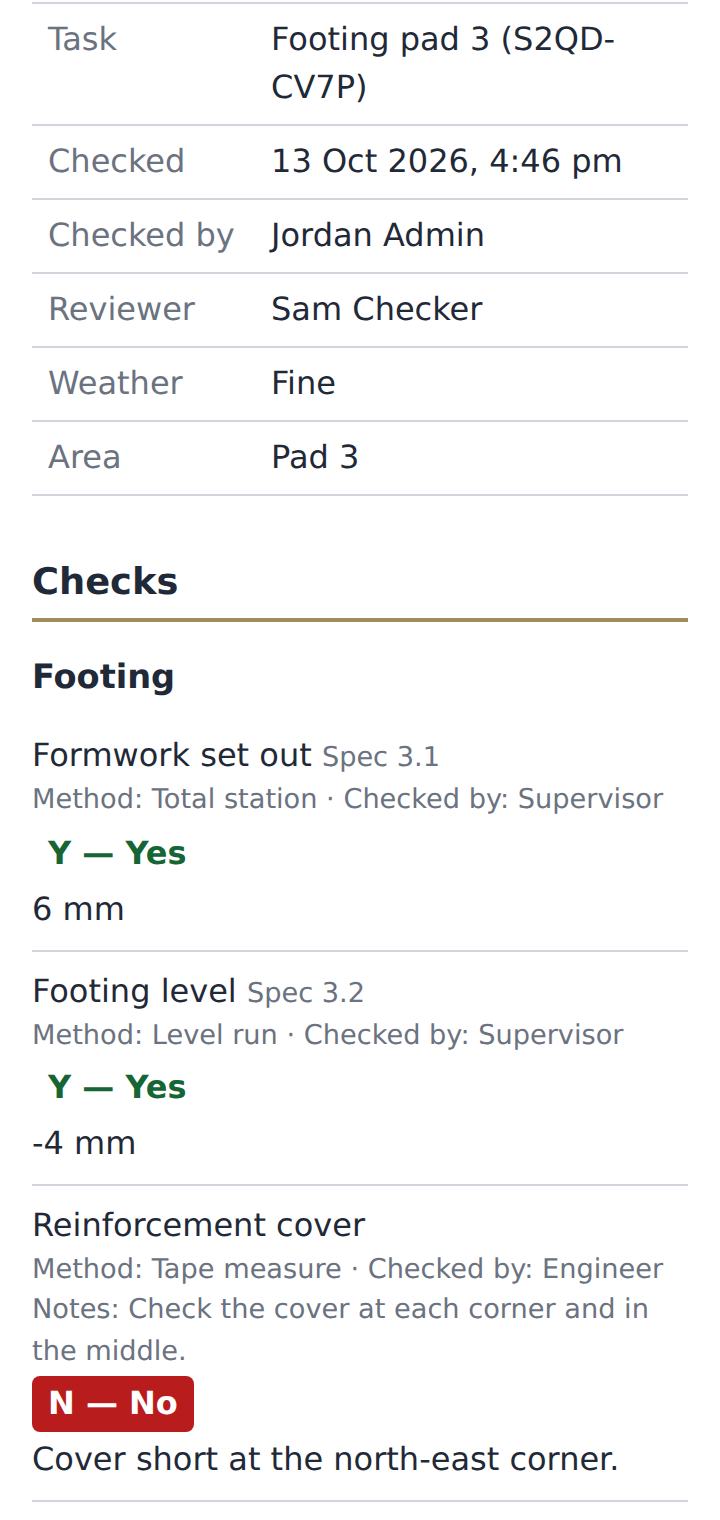
+ New record opens the verification record on the phone. Each check is answered Y or N, with the measured value and a comment where needed, plus the details, any reference numbers and the person who should receive it (the Reviewer).
It saves as you go, so nothing is lost if the phone is put away.
7Signing and sealing
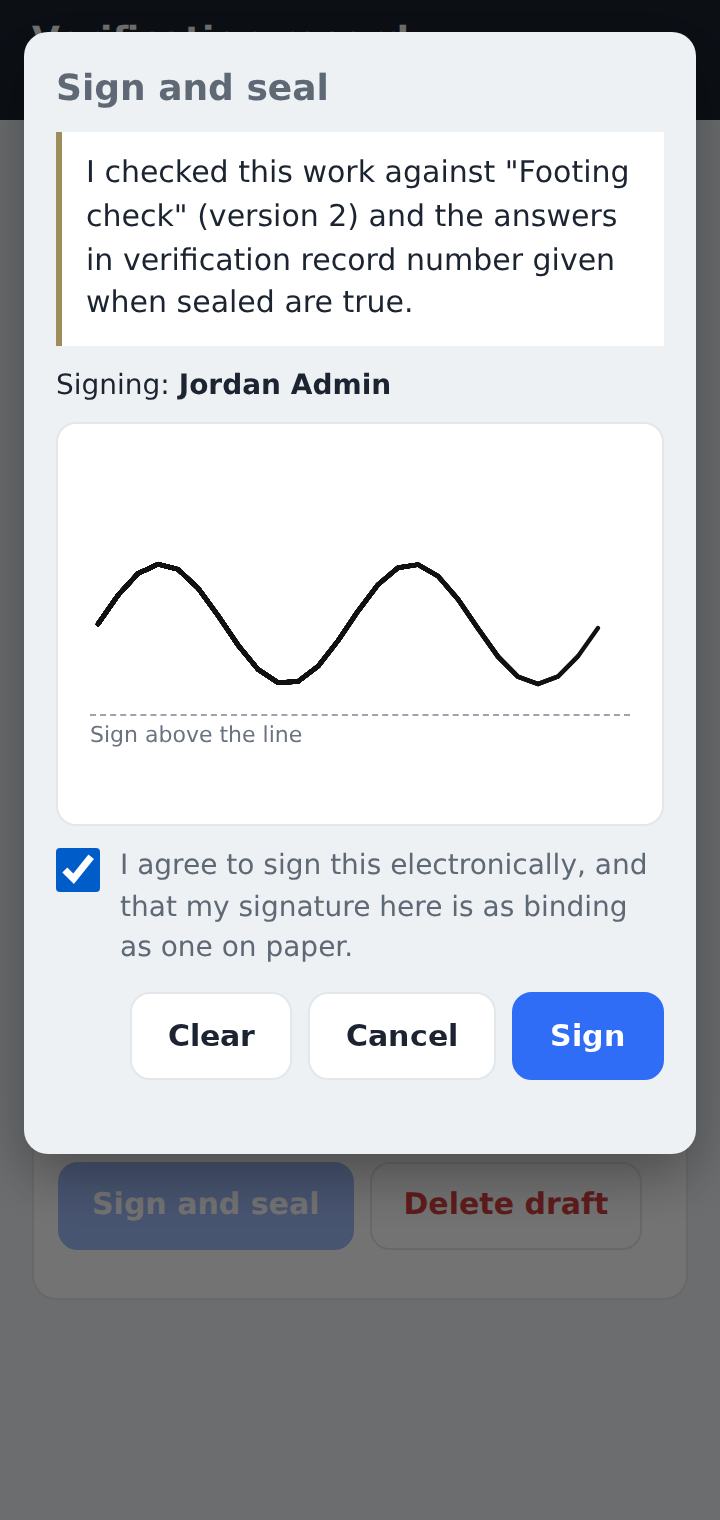
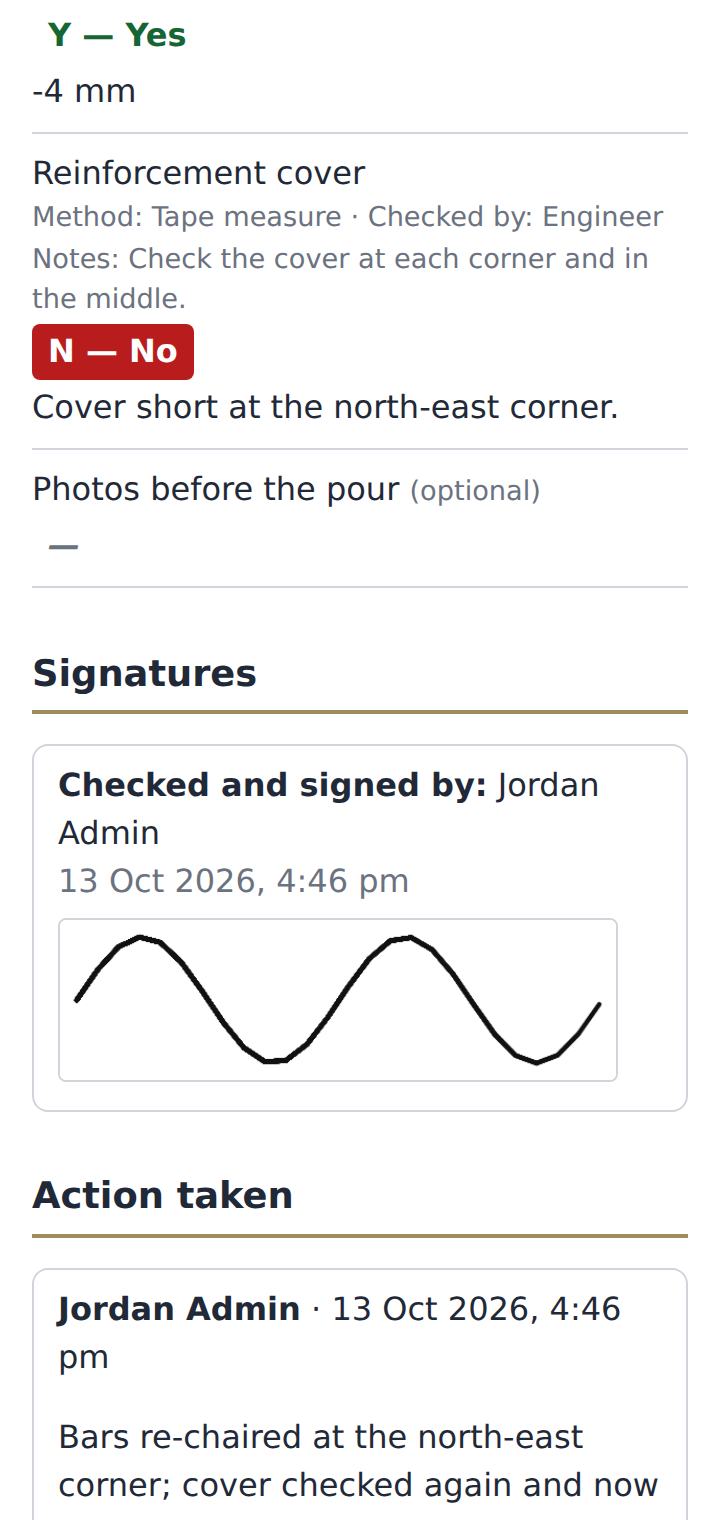
Sign and seal: the person draws their signature and ticks to agree. The record gets its number and is sealed: it can’t be changed after that. A client representative can sign on the same phone if they’re there.
8When a check is answered N
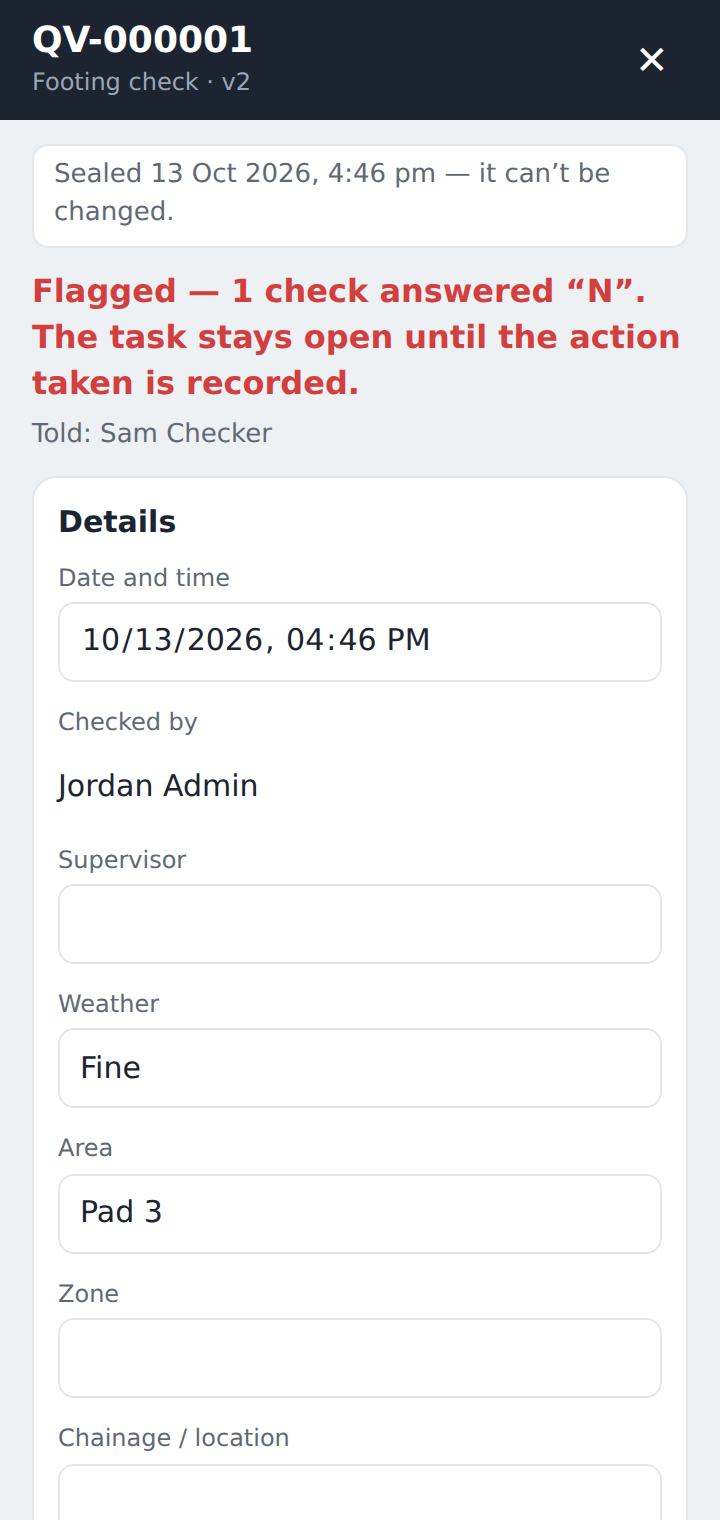
The record is flagged. The Reviewer and the people above them in the client’s organisation are told straight away, and so are the task’s assignees and the project’s Admins. The record shows who was told.
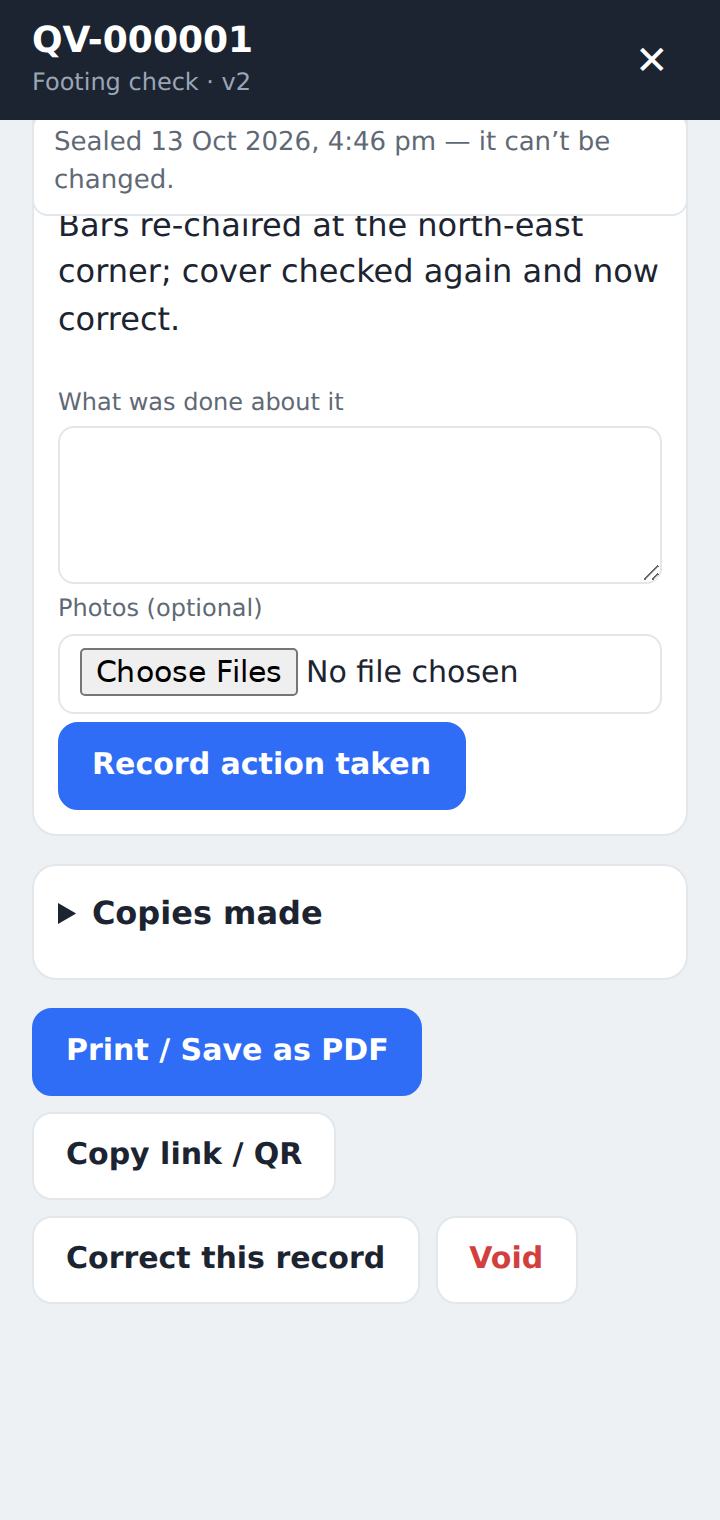
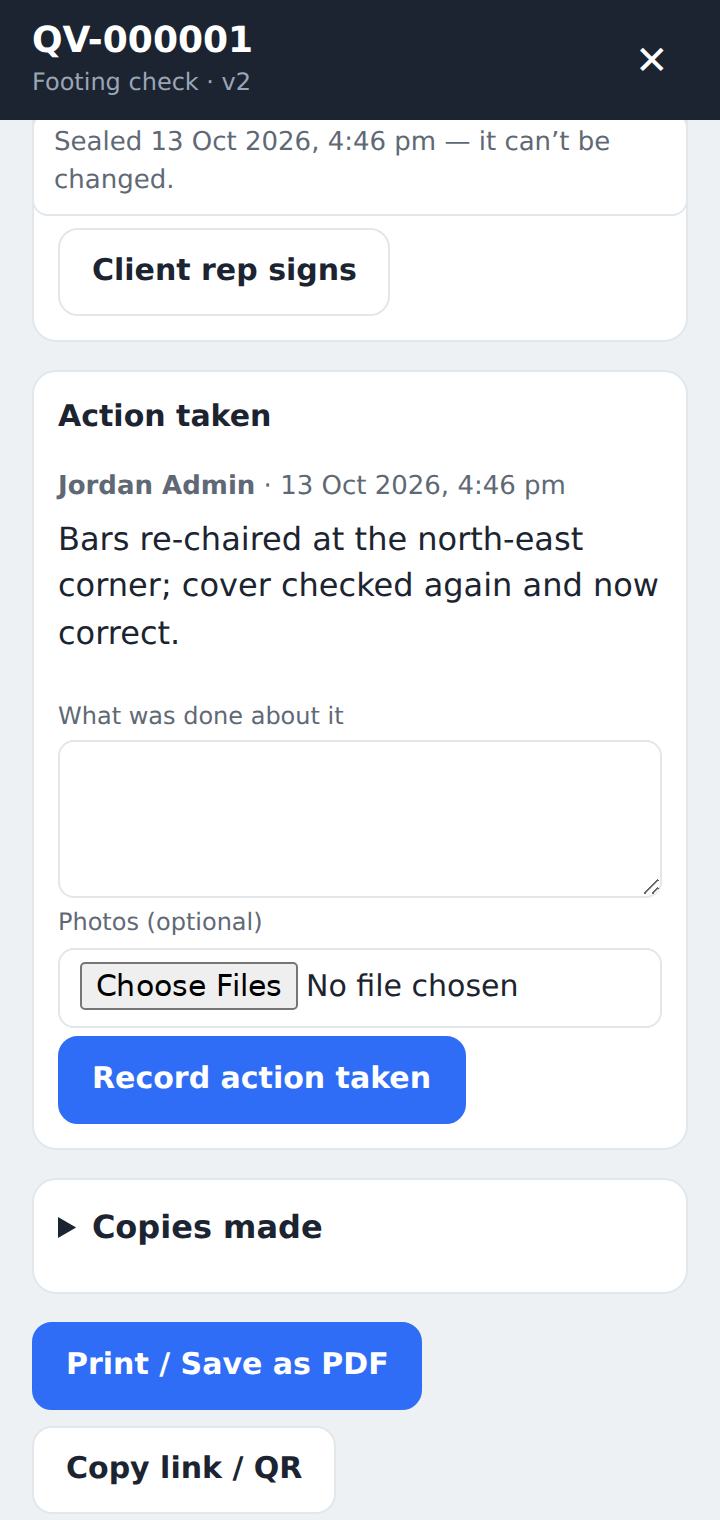
The task can’t be completed until someone records the Action taken: what was done, with photos if useful.
9Where you review the results
Each task keeps its Verification records on the Quality field’s tab: drafts, sealed records, and any check answered N. With several Quality fields, each tab holds the records for its own standard.
Open a record to read it, or use Print / Save as PDF. Copy link / QR gives a read-only copy for someone without a login. The Reviewer’s own emailed copy also shows the drawn signatures.
10Mistakes
- Correct this record starts a new record copied from it. When that one is signed, it replaces the old one, which stays on file marked as corrected.
- Void (account Owner or Admin only, with a reason) withdraws a record. It stays on file, marked void.